How to Migrate a Website Without Downtime: A S tep-by-Step Guide
Print- 0
How to Migrate a Website Without Downtime: A S tep-by-Step Guide
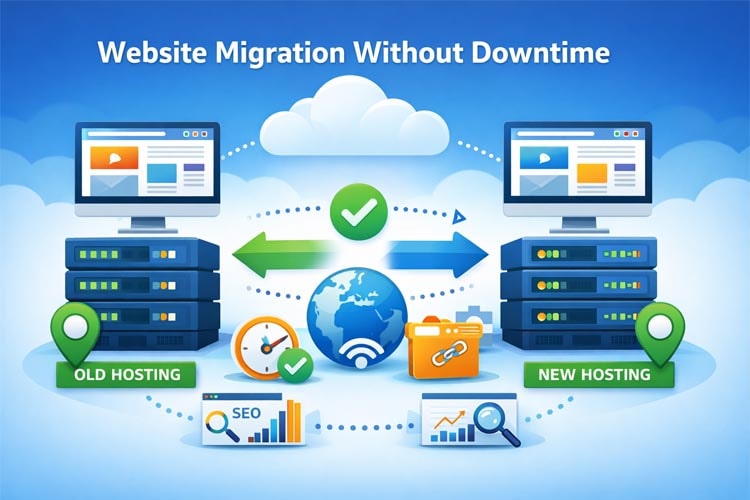
Why Website Migration Without Downtime Matters
Website migration is often necessary—whether you're upgrading hosting plans, switching providers, or optimizing infrastructure. However, any period of inaccessibility during the transition can have serious consequences for user trust, business continuity, and search engine rankings.
Downtime directly impacts user experience. Even a few minutes of unavailability can lead to lost sales, abandoned carts, or frustrated visitors—especially for e-commerce stores or service-based platforms that rely on real-time engagement. From a technical standpoint, search engines like Google interpret downtime as a signal of instability, which may temporarily lower your site’s visibility in organic results.
More critically, unplanned outages during migration can expose vulnerabilities: broken links, missing assets, or incomplete database transfers may persist if the process isn’t meticulously orchestrated. This not only affects functionality but also erodes credibility with both users and algorithms.
A seamless migration preserves uptime by synchronizing data between old and new environments before final DNS cutover. Techniques such as lowering TTL (Time-to-Live) values in advance, performing staged file transfers, and validating configurations on a staging URL ensure zero disruption. This approach reflects operational maturity and technical diligence—hallmarks of professional hosting management.
Understanding your hosting environment is foundational to executing such a move safely. As explained in our guide on what web hosting is, the server isn’t just storage—it’s the live ecosystem where your site operates 24/7. Any interruption risks breaking that continuity.
Ultimately, migrating without downtime isn’t just a technical preference—it’s a commitment to reliability. It demonstrates respect for your audience’s time, protects your digital reputation, and aligns with best practices that search engines reward through sustained indexing and ranking stability.
Pre-Migration Checklist: Prepare Your Site for a Smooth Move
Successful website migration begins long before files are transferred. A structured pre-migration checklist minimizes risk, prevents data loss, and ensures continuity of service—critical for maintaining SEO equity and user trust.
First, conduct a full inventory of your site’s components: document all installed plugins (especially for WordPress), custom scripts, email accounts, cron jobs, and SSL certificates. Missing even one element can break functionality post-migration.
Next, verify compatibility between your current setup and the new environment. Ensure PHP version, database engine (e.g., MySQL or MariaDB), and required modules match or exceed your application’s needs. Mismatches often cause silent errors that surface only after DNS propagation.
Lower your domain’s TTL (Time-to-Live) to 300–600 seconds at least 48 hours in advance. This reduces DNS caching delays during the final cutover, limiting exposure to partial availability. Remember, the domain system is separate from hosting—understanding how domains work is essential for precise control.
Perform a complete backup of both files and databases. Store copies off-server—preferably in two locations. Test restoration on a staging environment to confirm integrity. Never assume backups are valid without verification.
Finally, audit your current hosting type. If moving from shared hosting to VPS or dedicated infrastructure, review resource usage patterns. Understanding the differences between hosting types ensures your new environment aligns with actual performance demands—not just marketing specs.
This preparation phase isn’t optional—it’s the foundation of zero-downtime migration.
Step 1: Backup Your Website and Database
Before initiating any migration, a complete and verified backup of your website files and database is non-negotiable. This step safeguards against data loss, configuration errors, or unforeseen interruptions during the transfer process.
A full backup includes:
- All website files (HTML, CSS, JavaScript, media, plugins, themes)
- The entire database (including posts, users, settings, and custom content)
- Email accounts and DNS records, if applicable
For WordPress sites—which power a significant portion of the web—backups must capture both the /wp-content directory and the MySQL database, as core functionality relies on their synchronization. Misalignment between files and database versions can break critical features post-migration.
Use reliable methods such as:
- Automated tools in cPanel or DirectAdmin (e.g., Backup Wizard)
- Specialized plugins like UpdraftPlus or All-in-One WP Migration for WordPress
- Manual SSH-based dumps using
mysqldumpandrsyncfor advanced users
Crucially, store backups off-server—on your local machine or a secure cloud location. A backup kept only on the source host offers no protection if the server becomes inaccessible.
After creation, validate the backup by performing a test restore in a staging environment. An untested backup is not a true safety net; corruption or incompleteness may only surface when recovery is urgently needed.
This discipline reflects professional hosting standards and aligns with best practices for risk mitigation. As emphasized in our guide on how to choose the best hosting for your site, data integrity and recoverability are hallmarks of a trustworthy infrastructure.
Never proceed to the next migration phase without a confirmed, restorable backup. It is the foundation of zero-downtime transitions.
Step 2: Set Up the New Hosting Environment
Before transferring any data, configure the new hosting environment to match—or exceed—the technical requirements of your website. This includes selecting the correct PHP version, enabling necessary extensions (such as cURL, GD, or mbstring), and ensuring database compatibility (MySQL or MariaDB).
For WordPress and other CMS-based sites, verify that the server supports URL rewriting (via Apache’s mod_rewrite or Nginx equivalent) to maintain clean permalinks. If your site uses SSL, install a valid certificate early—either through Let’s Encrypt or a custom upload—to avoid mixed-content issues during testing.
Create all required email accounts, cron jobs, and subdomains in advance. Misconfigured cron tasks or missing mailboxes are common oversights that cause post-migration disruptions. Also, ensure file permissions align with security best practices: typically, directories at 755 and files at 644, with stricter settings for sensitive configuration files like wp-config.php.
Step 3: Upload Files and Import the Database to the New Server
With the environment ready, transfer your website files using secure methods such as SFTP, rsync, or the file manager in your control panel. Avoid unencrypted FTP—it risks exposing credentials and data during transit.
Simultaneously, export your database from the old server using a reliable tool like phpMyAdmin or mysqldump, then import it into the new database instance. After import, update the database connection details in your site’s configuration file (e.g., wp-config.php for WordPress) to reflect the new host, username, password, and database name.
For dynamic sites, especially those with absolute URLs stored in the database (common in WordPress), perform a search-and-replace operation to update old domain references to the new temporary URL or IP address—using tools like WP-CLI or specialized scripts to avoid serialized data corruption.
At this stage, nothing should be live yet. The goal is to replicate your site accurately in isolation, preparing it for thorough validation before DNS changes expose it to visitors.
Step 4: Test Your Website on the New Server Using a Temporary URL
Before making your site live on the new server, thorough testing is essential to ensure all components function correctly. This is done using a temporary URL—typically the server’s IP address combined with a path or hostname—which allows you to preview the site without changing DNS records.
Testing at this stage verifies that:
- All pages load without errors (e.g., no 404s or 500s)
- Media files display properly and are not broken
- Forms, contact pages, and interactive elements submit correctly
- Database-driven content (e.g., blog posts, product listings) appears as expected
- SSL certificates are installed and functioning if HTTPS is used
For WordPress sites, confirm that permalinks are regenerated and that the site URL in the database matches the temporary access method. Failure to update internal URLs can cause redirects to the old domain or mixed-content warnings.
Additionally, test critical backend functions:
- Admin login and dashboard access
- Email sending capabilities (via test messages)
- Cron jobs or scheduled tasks (if applicable)
- Third-party integrations (payment gateways, analytics, APIs)
Use browser developer tools to inspect for JavaScript errors, failed resource loads, or insecure content. Run performance checks using tools like Lighthouse or WebPageTest to confirm baseline speed aligns with expectations.
This validation phase is not optional—it’s a quality control checkpoint that prevents public exposure of broken functionality. Only after full confirmation of stability and completeness should you proceed to DNS cutover.
Step 5: Update DNS Records with Minimal TTL Settings
DNS (Domain Name System) is the bridge between your domain name and the server hosting your website. During migration, updating DNS records correctly ensures visitors are seamlessly directed to the new server without disruption.
Before making any DNS changes, ensure the TTL (Time to Live) value for your domain’s DNS records has been reduced—ideally to 300 or 600 seconds—at least 24 to 48 hours in advance. TTL dictates how long DNS resolvers cache your domain’s IP address. A lower TTL minimizes propagation delay, allowing faster adoption of the new server’s IP once updated.
Once the TTL window has passed, proceed to update the A record (and AAAA record if using IPv6) to point to the new server’s IP address. If your email is hosted on the same server, also verify MX records; otherwise, leave them unchanged to avoid email delivery issues.
Important considerations:
- Only modify DNS records related to web traffic unless you’re also migrating email services.
- Avoid changing nameservers unless absolutely necessary—editing individual records offers more control and reduces risk.
- If using a CDN or external DNS provider (e.g., Cloudflare), ensure the new IP is added there as well.
After updating DNS, propagation begins immediately but may take up to the original TTL duration to fully complete across global networks. With a minimized TTL, most users will reach the new server within minutes, not hours.
Do not delete or disable the old server immediately. Keep it running until DNS propagation is confirmed worldwide—typically 12–24 hours—to prevent any visitors from encountering downtime due to cached DNS entries.
This disciplined approach to DNS management reflects operational rigor and ensures continuity of service, which is essential for maintaining user trust and search engine visibility during migration.
Step 6: Monitor Propagation and Verify Full Functionality
Once DNS records are updated, global propagation begins—but it’s not instantaneous. Monitoring this phase ensures your site remains accessible and fully operational for all users, regardless of location.
Use reliable DNS propagation tools (such as DNS Checker or WhatsMyDNS) to track real-time updates across multiple geographic regions. While most users will resolve to the new server within the TTL window (e.g., 5–10 minutes with a low TTL), some ISPs may cache longer, causing temporary inconsistencies.
During this window, verify end-to-end functionality:
- Confirm all pages load correctly over HTTPS without mixed-content warnings.
- Test forms, search functions, and user logins to ensure dynamic features work.
- Validate email delivery if MX records were modified—send test messages internally and externally.
- Check media assets (images, videos, CSS, JS) for broken paths or 404 errors.
- Review database-driven content (e.g., product listings, blog posts) for completeness and accuracy.
Pay special attention to caching layers. Clear any server-side, CDN, or plugin caches that may serve stale content from the old environment. A cached redirect or outdated asset can create partial failures even when the migration is technically complete.
Monitor server resource usage via your hosting dashboard. Unusual spikes in CPU, memory, or I/O may indicate misconfigured scripts, missing files, or runaway processes introduced during transfer.
Only after confirming consistent performance across regions and full feature parity should you decommission the old hosting environment. Premature shutdown risks losing traffic still resolving to the legacy IP.
This final validation stage reflects operational diligence—it transforms a technical move into a seamless user experience, preserving SEO equity and maintaining trust throughout the transition.
Common Causes of Downtime During Migration (and How to Avoid Them)
Even minor oversights during website migration can lead to unexpected downtime, impacting user experience and search engine trust. Understanding the most frequent technical pitfalls—and how to prevent them—is essential for a seamless transition.
1. Incomplete DNS propagation management
Changing DNS records without lowering TTL in advance causes prolonged caching, leading to partial availability. Always reduce TTL to 300–600 seconds at least 48 hours before migration.
2. Unverified backups
Assuming a backup is valid without testing it risks data loss. Always perform a full restore in a staging environment to confirm file integrity and database consistency.
3. Database connection mismatches
After import, failing to update configuration files (e.g., wp-config.php) with new database credentials results in connection errors. Double-check hostnames, usernames, passwords, and database names.
4. Hardcoded URLs in the database
Many CMS platforms store absolute URLs in the database. Migrating without updating these references causes redirects to the old domain or broken assets. Use safe search-and-replace tools that handle serialized data correctly.
5. Premature DNS switch
Updating DNS before the new server is fully tested and ready exposes visitors to an incomplete or non-functional site. Only proceed after validating all functionality via a temporary URL or hosts file override.
6. Missing email or cron configurations
Email accounts, scheduled tasks, and custom scripts are often overlooked. Reconfigure these on the new server before final cutover to avoid service gaps.
7. SSL/TLS misconfiguration
Installing a certificate without proper binding or using mismatched protocols triggers browser warnings. Ensure HTTPS works correctly on the new environment before going live.
Proactive planning, methodical validation, and disciplined execution eliminate nearly all avoidable downtime. The goal isn’t just to move a site—but to move it invisibly.
When to Use Professional Migration Services from Madar Host
While many website migrations can be handled independently, certain scenarios warrant expert intervention to ensure reliability, security, and continuity. Engaging professional migration support is not a sign of technical weakness—it’s a strategic decision to mitigate risk and preserve operational integrity.
Consider professional assistance when:
- Your site is mission-critical—such as an e-commerce platform, SaaS application, or high-traffic business portal—where even minutes of downtime translate to significant revenue or reputation loss.
- The environment is complex—including custom-coded applications, multiple integrated services (payment gateways, CRMs, APIs), or hybrid infrastructures (cloud + on-premise components).
- You lack access to full backups or documentation—migrating without verified data or configuration details increases the chance of irreversible errors.
- The current host restricts access—some legacy or managed providers limit SSH, database exports, or file transfers, requiring specialized extraction techniques.
- Time constraints are tight—professional teams execute migrations faster and with fewer oversights, especially during off-peak hours to minimize user impact.
Professional migration services go beyond file transfer. They include pre-migration audits, compatibility checks, DNS coordination, post-move validation, and rollback planning—ensuring every layer of your stack functions cohesively on the new infrastructure.
At Madar Host, migrations are handled by engineers with deep expertise in diverse hosting environments, content management systems, and server architectures. The focus remains on precision, transparency, and zero-downtime execution—aligning with industry best practices for enterprise-grade reliability.
If your priority is uninterrupted service, data fidelity, and peace of mind, professional migration isn’t an expense—it’s insurance against avoidable disruption.
Frequently Asked Questions (FAQ)
How can I migrate my website without any downtime?
To migrate your website without downtime, follow a structured process: back up your site and database, set up the new hosting environment, upload files and import the database, test the site using a temporary URL, lower your DNS TTL in advance, update DNS records only after full testing, and monitor propagation. This ensures visitors always see a working version of your site.
What is the role of DNS TTL in zero-downtime migration?
DNS TTL (Time to Live) determines how long DNS records are cached by resolvers. Lowering the TTL (e.g., to 300 seconds) before migration reduces caching duration, allowing faster propagation of new DNS settings and minimizing the risk of users being directed to the old server after migration.
Can I test my website on the new server before changing DNS?
Yes. Most hosting providers offer a temporary URL or IP-based access to preview your site on the new server. This lets you verify functionality, check links, test forms, and ensure database connections work—without affecting live traffic on the current site.
How long does a seamless website migration usually take?
A seamless migration typically takes a few hours to complete, but planning and preparation may take 1–2 days. Actual downtime can be avoided entirely if steps like pre-migration backups, environment setup, and DNS TTL adjustments are handled correctly in advance.
What should I back up before migrating my website?
Back up all website files (including hidden ones like .htaccess), the full database, email accounts, SSL certificates, cron jobs, and any custom configurations. A complete backup ensures you can restore your site quickly if anything goes wrong during the move.
Will my email stop working during website migration?
Email may be disrupted if mail servers are tied to your domain’s DNS. To avoid this, either keep email hosted separately (e.g., via Google Workspace or a third-party service) or ensure MX records are correctly configured on the new server before updating DNS.
Do I need technical skills to migrate a website without downtime?
Basic technical knowledge helps, especially for handling databases, file transfers, and DNS settings. However, many hosting providers—including Madar Host—offer free or paid migration services that handle the entire process securely and without downtime, even for non-technical users.
What happens if I forget to lower the DNS TTL before migration?
If TTL isn’t lowered beforehand, DNS changes may take 24–48 hours (or longer) to fully propagate. During this window, some visitors might still reach the old server—which could be offline—causing partial downtime. Always reduce TTL at least 24–48 hours before migration.
Can WordPress sites be migrated without downtime?
Yes. WordPress sites can be migrated without downtime using the same best practices: full backup (files + database), staging on the new host, URL replacement if needed, thorough testing via a temporary link, and careful DNS cutover with low TTL settings.
How do I know when DNS propagation is complete?
Use online tools like whatsmydns.net or dig commands to check global DNS propagation. Once the new IP appears consistently across multiple locations, your site is fully live on the new server. Continue monitoring for 24–48 hours to catch any edge cases.