How to Install WordPress: A Step-by-Step Guide for Beginners
Print- 0
How to Install WordPress: A Step-by-Step Guide for Beginners
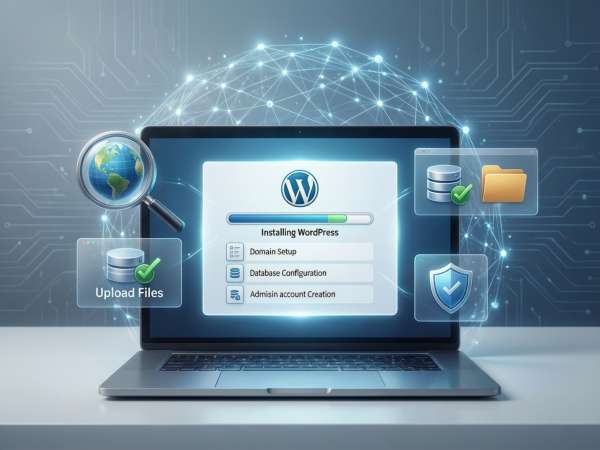
Why Choose WordPress for Your Website?
WordPress powers over 43% of all websites globally—not by chance, but because it delivers a rare balance of simplicity, flexibility, and performance. As a content management system (CMS), it enables users to build and manage everything from personal blogs to enterprise-grade e-commerce platforms without deep technical expertise.
One of its core strengths lies in its architecture: WordPress is built on open-source principles, ensuring continuous community-driven improvements, security patches, and compatibility with modern web standards. This collaborative development model translates into a stable, future-proof foundation for any digital presence.
For businesses and creators alike, WordPress offers unmatched extensibility. With thousands of themes and plugins—many actively maintained and regularly audited—you can tailor functionality precisely to your needs, whether that’s SEO optimization, multilingual support, or advanced analytics integration. Unlike closed platforms, WordPress grants full ownership of your data and design, eliminating vendor lock-in.
Performance and search engine visibility are deeply intertwined, and WordPress is inherently SEO-friendly. Clean code structure, customizable permalinks, and semantic markup allow search engines to crawl and index content efficiently. When paired with optimized hosting infrastructure, WordPress sites load quickly—a critical factor for user retention and ranking signals.
However, WordPress’s potential is only fully realized when supported by a robust hosting environment. Poorly configured servers, outdated PHP versions, or inadequate resource allocation can undermine even the best-built site. That’s why aligning your WordPress project with a hosting solution engineered for its specific requirements—such as caching layers, database tuning, and automatic updates—is essential for long-term reliability.
For those evaluating their options, understanding the relationship between your CMS and hosting stack is crucial. Learn more about optimized WordPress hosting versus shared hosting to ensure your site operates at peak efficiency from day one.
Prerequisites Before Installing WordPress
Before installing WordPress, ensure your environment meets the foundational requirements for stability, security, and performance. WordPress itself is lightweight, but its real-world operation depends heavily on the underlying hosting infrastructure.
1. A Registered Domain Name
Your website needs a unique web address (e.g., yoursite.com). This domain must be properly registered and pointed to your hosting server via DNS settings. Without a valid domain, visitors cannot access your site—even if WordPress is installed correctly. Learn more about how domains work and how to configure them.
2. Compatible Web Hosting
WordPress requires a hosting environment that supports PHP 8.0+ and MySQL 5.7+ (or MariaDB 10.5+). While it can run on shared hosting, performance and scalability improve significantly with optimized environments—especially for dynamic content or e-commerce. For beginners, a managed WordPress plan or at least SSD-based shared hosting is strongly recommended. See types of hosting and their suitability for WordPress to match your project’s scale.
3. Access to a Control Panel (e.g., cPanel)
Most installations—especially one-click setups—require access to a hosting control panel like cPanel or DirectAdmin. These interfaces simplify database creation, file management, and security configuration. If you're using a VPS or dedicated server without a panel, you’ll need command-line proficiency or a management layer. Compare popular control panels in our cPanel vs. DirectAdmin guide.
4. Basic Technical Readiness
Ensure you have: - FTP/SFTP or file manager access - Ability to create a MySQL database and user - HTTPS/SSL enabled (non-negotiable for security and SEO) - Backup capability before making changes
Skipping these prerequisites often leads to installation errors, security gaps, or poor performance. A solid foundation ensures WordPress runs smoothly from day one—and scales reliably as your site grows.
Domain Name and Web Hosting Requirements
Installing WordPress successfully begins with two foundational components: a registered domain name and a compatible web hosting environment. These are not optional—they are essential technical prerequisites that directly impact your site’s accessibility, performance, and long-term maintainability.
A domain name serves as your website’s address on the internet (e.g., example.com). It must be registered through an accredited registrar and properly configured to point to your hosting server using DNS records—typically A records or nameservers. Without correct DNS propagation, visitors cannot reach your WordPress installation, regardless of how well it’s set up on the server side.
Your web hosting service must meet WordPress’s minimum system requirements: PHP version 8.0 or higher, MySQL 5.7+ (or MariaDB 10.5+), and HTTPS support via an SSL/TLS certificate. While older versions may still function, they pose security risks and lack performance optimizations found in modern releases. Additionally, sufficient disk space, memory allocation, and database support are critical—especially if you plan to run plugins, handle media uploads, or manage high traffic.
Beyond technical specs, the hosting environment should offer reliable uptime, regular backups, and proactive security measures such as malware scanning and DDoS protection. Shared hosting can suffice for small sites, but resource-intensive applications—like e-commerce stores or membership platforms—benefit significantly from managed WordPress hosting, VPS, or cloud solutions that provide isolated resources and server-level caching.
It’s also important to verify that your host enables key features like: - Mod_rewrite (for clean permalinks) - Secure file permissions - Access to error logs - One-click restore or staging environments
Choosing a domain and hosting provider independently is possible, but integrating both under a single trusted provider often simplifies management, reduces configuration errors, and streamlines support. Ensure your domain’s WHOIS information is accurate and that auto-renewal is enabled to prevent accidental expiration—a common cause of unexpected downtime.
In summary, a valid domain and a standards-compliant hosting environment form the bedrock of any WordPress deployment. Investing time in verifying these requirements upfront prevents common pitfalls and sets the stage for a secure, scalable, and high-performing website.
Access to cPanel or Hosting Control Panel
Access to a hosting control panel—most commonly cPanel—is a critical prerequisite for installing and managing WordPress, especially for users without command-line experience. These interfaces provide a centralized dashboard to handle essential server-side tasks through a user-friendly graphical environment.
The control panel enables you to create and manage MySQL databases, which WordPress requires to store content, settings, and user data. Without this capability, manual database setup becomes necessary—a process that demands familiarity with terminal commands and SQL syntax. For most website owners, particularly beginners or small business operators, the control panel eliminates this complexity entirely.
Beyond database management, control panels offer tools for file uploads (via File Manager or integrated FTP clients), email account creation, SSL certificate installation, DNS configuration, and backup restoration. Many also include one-click application installers—such as Softaculous or Installatron—that automate WordPress deployment in under a minute, including database linking and initial configuration.
While cPanel is the industry standard, alternatives like DirectAdmin, Plesk, or custom dashboards serve similar functions. Regardless of the interface, what matters is access to core functionalities: database provisioning, file system navigation, and secure credential management. If your hosting provider does not offer a control panel, ensure you have either SSH access with sufficient privileges or a managed service that handles these tasks on your behalf.
It’s also worth noting that control panel access typically comes with your hosting account credentials. You’ll usually log in via a URL like https://yourdomain.com/cpanel or a dedicated portal provided by your host. Keep these credentials secure and separate from your WordPress admin login to maintain layered security.
In summary, a functional hosting control panel significantly reduces the technical barrier to WordPress installation and ongoing maintenance. It empowers users to manage their hosting environment confidently, troubleshoot issues efficiently, and implement best practices—without requiring deep server administration knowledge. Confirming this access before beginning your WordPress setup ensures a smoother, more reliable deployment process.
Method 1: One-Click WordPress Installation (Recommended for Beginners)
One-click WordPress installation is the fastest and most reliable method for users who want to launch a website without manual configuration. Integrated into most modern hosting control panels—such as cPanel via Softaculous or similar auto-installers—this approach automates database creation, file deployment, and initial setup in under a minute.
The process begins by logging into your hosting control panel and locating the “WordPress” or “Website” installer section. After selecting WordPress from the list of available applications, you’ll be prompted to choose the domain where the site will reside. You can install it on the primary domain, a subdomain, or within a specific directory (e.g., /blog) depending on your project structure.
Next, you’ll provide basic administrative details: a site title, admin username, strong password, and email address. These credentials grant access to the WordPress dashboard after installation. It’s crucial to use a unique username (not “admin”) and a complex password to reduce brute-force attack risks from the outset.
Behind the scenes, the installer automatically: - Creates a dedicated MySQL database and user - Assigns secure database permissions - Downloads the latest stable WordPress version from official repositories - Configures the wp-config.php file with correct database credentials - Sets up default file permissions for security and functionality
This automation eliminates common errors such as incorrect database connections, missing files, or misconfigured settings—issues that often frustrate beginners during manual setups. Additionally, reputable installers ensure you’re using the current WordPress release, which includes the latest security patches and performance improvements.
While convenient, one-click installations still require post-setup attention. Immediately after installation, log into your WordPress admin area and: - Delete any default plugins or placeholder content if present - Install essential security and caching plugins - Enable automatic updates for core, themes, and plugins - Verify SSL/HTTPS is active across the entire site
For non-technical users, small businesses, or anyone prioritizing speed and simplicity, one-click installation offers a secure, standardized entry point into WordPress—without sacrificing best practices. It’s not a shortcut around responsibility, but a streamlined foundation that lets you focus on building your site rather than troubleshooting server-level tasks.
How to Install WordPress via cPanel Auto-Installer
Installing WordPress through a cPanel auto-installer—such as Softaculous or similar integrated tools—is the most efficient method for users seeking a reliable, secure, and error-free setup without manual configuration. This approach is widely supported by professional hosting providers and ensures compatibility with server requirements from the outset.
Begin by logging into your cPanel account using the credentials provided by your hosting provider. Navigate to the “Software” or “Applications” section, where you’ll typically find an icon labeled “WordPress” or “Softaculous Apps Installer.” Clicking it opens the installation interface.
Select the domain on which you want to install WordPress. You can choose the primary domain, a subdomain (e.g., blog.yoursite.com), or a subdirectory (e.g., yoursite.com/blog). For most new websites, installing on the root directory of the primary domain is recommended to establish a clean site structure.
Next, configure your administrative details. Enter a descriptive site name and a strong admin password. Avoid generic usernames like “admin”; instead, use a unique identifier to reduce vulnerability to brute-force attacks. Provide a valid email address—this will be used for password recovery and important notifications.
The installer automatically handles critical backend tasks: it creates a dedicated MySQL database, assigns a secure user with appropriate privileges, downloads the latest stable WordPress version directly from official sources, and configures the wp-config.php file with correct database credentials. It also sets proper file permissions to balance functionality and security.
Advanced options—such as enabling automatic updates, selecting a default theme, or pre-installing essential plugins—are often available. While optional, enabling core updates is strongly advised for long-term security and performance.
Once you confirm the settings, the installer completes the process in under 60 seconds. After installation, you’ll receive a success message with direct links to your new WordPress admin dashboard and live site. Immediately log in to verify access, delete any sample content if present, and review basic settings like permalinks and timezone.
This method eliminates common pitfalls such as incorrect database connections, missing files, or misconfigured permissions. By leveraging a trusted auto-installer within a standards-compliant cPanel environment, you ensure a solid foundation that aligns with both WordPress best practices and hosting industry standards.
Configuring Your Admin Account After Installation
Immediately after installing WordPress, securing and properly configuring your admin account is essential to protect your site from unauthorized access and ensure smooth long-term management. The default settings created during installation—while functional—are rarely optimized for security or usability.
First, log into your WordPress dashboard using the credentials you provided during setup. If you used a one-click installer, double-check that the username is not generic (e.g., “admin” or “administrator”). If it is, create a new administrator-level user with a unique, non-guessable username, assign it full privileges, log in with the new account, and delete the original one. This simple step significantly reduces exposure to automated brute-force attacks.
Next, strengthen your password policy. Use a strong, randomly generated password of at least 12 characters, combining uppercase and lowercase letters, numbers, and symbols. Avoid reusing passwords from other services. For added security, consider enabling two-factor authentication (2FA) via a trusted plugin—this adds a critical second layer of identity verification.
Review your account’s display name under Users > Your Profile. By default, WordPress may show your username publicly in author bylines or RSS feeds. Change the “Display name publicly as” field to your real name or a brand alias to prevent exposing your login identifier.
Ensure your email address is accurate and actively monitored. This address is used for password resets, security notifications, and core update alerts. If your hosting environment supports it, verify that outgoing emails from WordPress (e.g., password reset links) are delivered reliably—misconfigured mail servers can block critical communications.
Additionally, limit the number of administrator accounts. Only grant this role to users who absolutely need full control over themes, plugins, and settings. For content editors or contributors, assign lower-capability roles like Editor, Author, or Contributor to follow the principle of least privilege.
Finally, audit your session security. Log out of any unused devices and avoid saving login credentials in public or shared browsers. Some security plugins offer session management features that allow you to view and terminate active sessions remotely.
A well-configured admin account isn’t just about convenience—it’s a foundational element of your site’s overall security posture. Taking these steps immediately after installation helps prevent common entry points for attackers and ensures you maintain reliable, secure control over your WordPress environment from day one.
Method 2: Manual WordPress Installation
Manual WordPress installation offers full control over the deployment process and is preferred by developers, agencies, or users requiring custom configurations not supported by auto-installers. While more involved than one-click methods, it ensures transparency, version precision, and alignment with specific server environments.
The process begins by downloading the latest WordPress package directly from wordpress.org. This guarantees you receive an unmodified, clean copy of the software—free from third-party alterations or bundled plugins sometimes included in automated installers.
Before uploading files, you must create a MySQL database and user through your hosting control panel or command line. Assign a strong, unique password to the database user and grant it full privileges on the new database. Record the database name, username, password, and host (typically “localhost”)—these details are required during configuration.
Next, upload the WordPress files to your server. This can be done via cPanel’s File Manager, an FTP/SFTP client like FileZilla, or command-line tools such as rsync or scp. Place the contents of the WordPress folder in the root directory of your site (e.g., public_html) or a subdirectory if running a multisite or staging environment.
Once files are in place, navigate to your domain in a web browser. WordPress detects the missing configuration file and prompts you to enter your database credentials. Alternatively, you can manually rename wp-config-sample.php to wp-config.php and edit it directly with your database details—a method that offers greater control and allows advanced settings like defining security keys or enabling debugging.
After confirming the database connection, WordPress runs the installation script (wp-admin/install.php), where you’ll set your site title, admin username, password, and email. Use a non-default username and a strong password to mitigate common security risks from the outset.
Manual installation also allows for pre-configuration of constants in wp-config.php, such as defining the content directory, enabling SSL enforcement, or setting up multisite networks—options typically unavailable in automated setups.
While this method requires more technical awareness, it provides a clean, auditable foundation. It’s ideal for environments where compliance, customization, or integration with CI/CD pipelines is necessary. When executed correctly, manual installation results in a secure, standards-compliant WordPress instance fully aligned with your operational requirements.
Downloading WordPress from WordPress.org
Downloading WordPress directly from the official source—wordpress.org—is the most secure and reliable way to obtain the software. Unlike third-party platforms or modified installers, the official repository guarantees an unaltered, clean version of WordPress that includes only core files, free from bundled plugins, hidden scripts, or licensing restrictions.
The process begins by visiting wordpress.org/download. Here, you’ll find the latest stable release, clearly labeled with its version number and release date. Always verify that you’re on the legitimate WordPress.org domain to avoid phishing or malware-laced imitations. The download is provided as a compressed ZIP file containing all necessary PHP scripts, themes, and default plugins.
This method ensures compatibility with WordPress’s open-source philosophy and aligns with best practices for security and maintainability. Official releases undergo rigorous testing by the global WordPress community and include critical security patches, performance improvements, and compliance with modern web standards such as PHP 8+ and MySQL 5.7+.
Once downloaded, the ZIP file must be extracted locally before uploading to your server. This step allows you to inspect the contents, confirm file integrity, and prepare for manual configuration if needed. It also gives developers the opportunity to integrate custom configurations—such as defining database credentials or enabling debugging mode—before deployment.
For users performing a manual installation, this clean package serves as the foundation for a fully auditable setup. It enables precise control over file permissions, directory structure, and integration with server-level caching or security modules. Additionally, using the official source simplifies future updates, as WordPress’s built-in updater relies on the same codebase and signature verification.
It’s important to note that wordpress.org provides the self-hosted version of WordPress, distinct from WordPress.com—a hosted service with limitations on customization and plugin usage. Only the .org version grants full ownership, flexibility, and access to the entire WordPress ecosystem, including thousands of community-reviewed themes and plugins.
In summary, downloading WordPress from its official origin is not just a technical step—it’s a commitment to security, transparency, and long-term site health. This practice reflects professional standards and ensures your website starts on a trustworthy, maintainable foundation.
Creating a MySQL Database for WordPress
Before installing WordPress manually, you must create a dedicated MySQL database and user. WordPress relies on this database to store all content—including posts, pages, comments, user accounts, and settings—making it a critical component of your site’s infrastructure.
Begin by logging into your hosting control panel (typically cPanel). Navigate to the “Databases” section and select “MySQL Databases.” Here, you’ll create a new database by entering a unique name—such as yourwpdb—and clicking “Create Database.” Avoid generic names to reduce predictability in case of targeted attacks.
Next, create a MySQL user with a strong, randomly generated password. Use a combination of uppercase and lowercase letters, numbers, and symbols. Never reuse passwords from other services. Once the user is created, return to the MySQL Databases interface and assign this user to your newly created database. Grant the user “All Privileges” to ensure WordPress can read, write, modify, and manage tables without restriction.
This separation of database and user enhances security: if credentials are compromised, the impact is limited to a single database rather than your entire hosting account. Additionally, avoid using the root MySQL account for WordPress—it increases risk and violates security best practices.
After setup, record four essential details:
- Database Name (e.g.,
yourusername_yourwpdb) - Database Username
- Database Password
- Database Host (usually
localhost)
These credentials will be used during WordPress configuration, either through the web-based installer or by manually editing the wp-config.php file. Ensure accuracy—typos in the database name or password are among the most common causes of the “Error establishing a database connection” message.
For added reliability, verify that your hosting environment supports MySQL 5.7 or higher (or MariaDB 10.5+), as older versions may lack performance optimizations and security patches required by modern WordPress releases. Some hosts also offer automated tools that generate the database and populate wp-config.php—useful for reducing human error during manual setups.
Properly configuring your MySQL database from the start ensures a stable foundation for your WordPress site, enabling seamless content management, secure data handling, and smooth future updates.
Uploading WordPress Files via FTP or File Manager
After downloading the WordPress package, the next critical step in manual installation is uploading its files to your server. This can be accomplished using either an FTP client (like FileZilla) or your hosting provider’s built-in File Manager—typically accessible through cPanel. Both methods are reliable, but each suits different user preferences and technical comfort levels.
Using an FTP Client: FTP (File Transfer Protocol) offers direct, secure access to your server’s file system. Begin by extracting the WordPress ZIP file on your local machine. Then, connect to your server using the FTP credentials provided by your host—usually your cPanel username and password, or dedicated FTP account details. Navigate to the root directory of your site (commonly public_html or a subdirectory if installing in a specific path). Upload all extracted WordPress files directly into this folder. Ensure file permissions remain intact during transfer; most hosts default to secure settings automatically.
Using File Manager: For users who prefer a browser-based approach, the File Manager in cPanel provides a convenient alternative. Log into cPanel, open File Manager, and navigate to your target directory. Upload the original WordPress ZIP file, then use the “Extract” function to unpack it directly on the server. This avoids potential permission issues that can arise from local extraction and ensures consistency with server-side configurations.
Regardless of method, verify that the wp-config.php file (or wp-config-sample.php) is present after upload. If you’ve pre-configured database settings locally, ensure the file is uploaded securely. Otherwise, WordPress will prompt you to create it during the web-based setup.
Common pitfalls to avoid include uploading files to the wrong directory (e.g., inside a nested folder), incomplete transfers due to connection drops, or incorrect file ownership. Always double-check that the index.php and wp-admin folders are in the correct location before proceeding.
Proper file deployment lays the groundwork for a stable WordPress installation. Taking care at this stage prevents configuration errors, broken paths, and security vulnerabilities—ensuring your site launches on a solid, maintainable foundation.
Running the WordPress Installation Script
After uploading WordPress files and configuring the database, the final step in manual installation is executing the WordPress installation script. This process initializes your site’s core settings and creates the necessary database tables to store content, users, and configurations.
Navigate to your domain in a web browser (e.g., https://yourdomain.com). If WordPress detects a valid database connection but no existing installation, it automatically redirects you to the setup wizard. If not, manually access https://yourdomain.com/wp-admin/install.php.
The installer begins by prompting you to select a language. Choose the one that matches your target audience—this affects both the admin interface and default site locale settings.
Next, you’ll enter basic site information:
- Site Title: A clear, descriptive name for your website (e.g., “Al-Nakheel Design Studio”). Avoid generic terms like “My Site.”
- Username: Create a unique admin username. Never use “admin” or easily guessable names to reduce brute-force risk.
- Password: Use a strong, randomly generated password (12+ characters with mixed case, numbers, and symbols).
- Your Email: Provide a valid, monitored address for password recovery and security notifications.
Optionally, you can discourage search engines from indexing your site during development—a useful setting if you’re building the site publicly before launch.
Once submitted, WordPress connects to your database, creates essential tables (such as wp_posts, wp_users, and wp_options), and stores your initial configuration. This process typically completes in seconds. Upon success, you’ll see a confirmation screen with a “Log In” button.
Immediately after installation, log into your WordPress dashboard (/wp-admin) to verify access. It’s critical to: - Delete the default “Hello World” post and sample page - Review permalink settings (enable “Post name” structure for SEO) - Install essential security and caching plugins - Confirm SSL/HTTPS is enforced sitewide
Running the installation script correctly ensures a clean, secure foundation. Any errors at this stage usually stem from incorrect database credentials or insufficient file permissions—both preventable with proper pre-installation validation.
Common WordPress Installation Errors and How to Fix Them
Even with careful preparation, WordPress installations can encounter errors—especially during manual setup. Understanding the most frequent issues and their solutions ensures a smooth deployment and minimizes downtime.
“Error Establishing a Database Connection”
This is the most common installation error and typically stems from incorrect database credentials in wp-config.php. Verify the database name, username, password, and host (usually localhost). Ensure the MySQL user has full privileges on the database. If the database doesn’t exist or wasn’t created properly, recreate it via your hosting control panel.
White Screen or Blank Page After Installation
A blank screen usually indicates a PHP fatal error, often due to insufficient memory or a misconfigured plugin/theme—even during installation if sample content includes problematic code. Increase the PHP memory limit by adding define('WP_MEMORY_LIMIT', '256M'); to wp-config.php. Also, check for hidden characters or syntax errors in configuration files, especially if edited manually.
File Permission Issues
Incorrect file or directory permissions can prevent WordPress from writing necessary files or accessing core components. Standard secure permissions are: - Files: 644 - Directories: 755 - wp-config.php: 600 or 644 (depending on server setup) Avoid setting permissions to 777, as this creates serious security vulnerabilities. Use your hosting file manager or SSH to adjust permissions correctly.
“Briefly Unavailable for Scheduled Maintenance” Loop
This occurs when the .maintenance file isn’t deleted after an update or failed installation. Access your site’s root directory via FTP or File Manager and manually remove the .maintenance file.
Redirect or Infinite Loop During Setup
Often caused by mismatched URLs in the database or server configuration. Ensure your domain resolves correctly and that no caching layer (server-side or CDN) is interfering with the installation process. Temporarily disable any caching during setup.
Proactively validating your environment—PHP version, MySQL compatibility, file integrity, and correct DNS—prevents most of these issues. When errors occur, systematic troubleshooting based on error logs (accessible via cPanel or hosting dashboard) leads to faster resolution and a more reliable WordPress foundation.
“Error Establishing a Database Connection”
The “Error establishing a database connection” message is one of the most common yet critical issues during WordPress installation or operation. It indicates that WordPress cannot communicate with its MySQL database—either due to incorrect credentials, a missing database, or server-level restrictions.
This error typically stems from one or more of the following causes:
1. Incorrect Database Credentials in wp-config.php
The most frequent cause is a typo or mismatch in the database name, username, password, or host defined in the wp-config.php file. During manual setup, even a single character error can break the connection. Always verify these values against those created in your hosting control panel.
2. Database Not Created or Deleted
If the database referenced in wp-config.php doesn’t exist on the server, WordPress cannot connect. This often happens when files are uploaded before the database is created, or if the database was accidentally removed during cleanup or migration.
3. Database User Lacks Proper Permissions
The MySQL user must have full privileges (SELECT, INSERT, UPDATE, DELETE, etc.) on the target database. If permissions are incomplete or revoked, WordPress fails to read or write data, triggering the error—even if credentials are correct.
4. Server Resource Limits or MySQL Service Down
On shared hosting, high server load or resource exhaustion can cause the MySQL service to become unresponsive. Similarly, misconfigured server firewalls or security modules may block database access entirely.
How to Diagnose and Resolve:
- Double-check all four database constants in
wp-config.php:DB_NAME,DB_USER,DB_PASSWORD, andDB_HOST(usuallylocalhost). - Log into your hosting control panel and confirm the database and user exist and are linked correctly.
- Test the database connection using phpMyAdmin or a simple PHP script to isolate WordPress from the issue.
- If the MySQL service is down, contact your hosting provider—this is typically outside user control.
Prevention is key: always document credentials during setup, avoid editing wp-config.php without backups, and use secure, consistent naming conventions. A properly configured database connection is foundational to WordPress stability, security, and performance.
White Screen or Blank Page After Installation
A white screen or blank page—often called the “White Screen of Death” (WSOD)—typically indicates a PHP fatal error that prevents WordPress from rendering any output. Unlike other errors, WSOD provides no visible message, making it challenging to diagnose without access to server logs.
Common causes include:
- Memory exhaustion: WordPress may exceed the allocated PHP memory limit, especially with resource-heavy themes or plugins.
- Syntax errors: Manual edits to
wp-config.php, theme files, or plugins can introduce fatal syntax mistakes. - Incompatible PHP version: Using outdated or unsupported PHP versions may break core functionality.
- Corrupted file uploads: Incomplete or interrupted file transfers during manual installation can leave critical files incomplete.
To resolve this, first enable debug mode by adding define('WP_DEBUG', true); to wp-config.php. This reveals hidden errors. If the issue persists, increase the memory limit via define('WP_MEMORY_LIMIT', '256M');. Additionally, verify all WordPress files were uploaded completely and match the official release checksums.
File Permission Issues
Incorrect file and directory permissions are a frequent cause of installation failures, security vulnerabilities, or partial functionality in WordPress. Permissions dictate who can read, write, or execute files on the server—and improper settings can block WordPress from accessing its own core files.
Recommended secure permissions:
- Files:
644(owner can read/write; others can only read) - Directories:
755(owner can read/write/execute; others can read and navigate) - wp-config.php:
600or644(restrictive, as it contains sensitive database credentials)
Never set permissions to 777—this grants full read/write/execute access to everyone, creating severe security risks. If WordPress cannot write to certain directories (e.g., for plugin updates or media uploads), ensure the web server user (often www-data or similar) owns the files or has appropriate group-level access.
Use your hosting control panel’s File Manager or an SFTP client to adjust permissions. After correction, clear any caching layers and reload the site. Proper permissions ensure stability, security, and full functionality—without compromising server integrity.
First Steps After Installing WordPress
Successfully installing WordPress is only the beginning. To ensure long-term performance, security, and usability, several critical post-installation steps must be completed immediately. These actions lay the groundwork for a stable, scalable, and secure website.
1. Log into the WordPress Dashboard
Access your admin area via yourdomain.com/wp-admin using the credentials created during installation. Verify that you can log in and that the dashboard loads without errors. This confirms a successful setup and database connection.
2. Update General Settings
Navigate to Settings > General to review your site title, tagline, timezone, and permalink structure. Change the permalink setting from “Plain” to “Post name” for clean, SEO-friendly URLs—a foundational step for search engine visibility and user experience.
3. Install Essential Plugins
Add only trusted, well-maintained plugins that address core needs: - Security (e.g., firewall, login protection) - Caching (to improve speed and reduce server load) - Backup (for automated, off-site data retention) Avoid plugin overload; each addition increases complexity and potential conflict points.
4. Choose and Configure a Theme
Select a lightweight, responsive, and regularly updated theme—preferably from the official WordPress repository or a reputable vendor. Avoid nulled or outdated themes, which often contain malicious code. Customize appearance via Appearance > Customize, not by editing core files directly.
5. Harden Security Immediately
- Delete the default “Hello World” post and sample page. - Ensure your admin username is not “admin.” - Enable two-factor authentication if possible. - Restrict file permissions: 644 for files, 755 for directories, and 600 for wp-config.php.
6. Verify SSL/HTTPS Enforcement
Confirm your site loads over HTTPS. If an SSL certificate is installed (as it should be), force HTTPS sitewide by updating your WordPress Address and Site Address in Settings or via wp-config.php. Mixed-content warnings must be resolved to maintain security and SEO integrity.
These initial steps transform a basic installation into a resilient, professional-grade website. Skipping them risks performance bottlenecks, security vulnerabilities, and poor user experience—issues that compound over time. A disciplined post-installation routine reflects operational maturity and ensures your WordPress site remains fast, secure, and maintainable from day one.
Logging into Your WordPress Dashboard
Accessing your WordPress dashboard is the gateway to managing your website’s content, appearance, plugins, and settings. After a successful installation, you can log in by navigating to https://yourdomain.com/wp-admin—replacing “yourdomain.com” with your actual domain name.
On the login screen, enter the username and password you created during the installation process. If you used a one-click installer, these credentials were either auto-generated or specified during setup. For manual installations, they match the admin account details you provided when running the installation script.
Upon successful authentication, you’ll be directed to the WordPress admin dashboard—a centralized control panel featuring a sidebar menu for navigation and an overview screen displaying site activity, updates, and quick actions. This interface is intuitive but powerful, enabling everything from publishing blog posts to configuring advanced security rules.
If you encounter login issues, consider the following common causes:
- Incorrect credentials: Double-check your username and password. Note that both are case-sensitive.
- Locked out due to brute-force protection: Some hosting environments or security plugins temporarily block IPs after repeated failed attempts.
- HTTPS/SSL mismatch: If your site enforces HTTPS but you’re accessing via HTTP (or vice versa), cookies may fail to validate, preventing login.
- Corrupted browser cache or cookies: Clear your browser data or try logging in via an incognito window.
For enhanced security, avoid saving login credentials in public or shared browsers. Never use the default “admin” username, and consider enabling two-factor authentication (2FA) once inside the dashboard. Additionally, ensure your session remains active only on trusted devices.
Once logged in, take a moment to explore the dashboard layout. Key sections include: - Posts/Pages: Manage content - Media: Upload and organize files - Appearance: Customize themes and menus - Plugins: Extend functionality - Settings: Configure site-wide options
Reliable access to your dashboard is essential for ongoing site management. Confirming this access immediately after installation ensures you maintain full control over your WordPress environment and can respond quickly to updates, security needs, or content changes.
Choosing a Theme and Installing Essential Plugins
Selecting the right theme and essential plugins is a strategic decision that directly impacts your site’s performance, security, and user experience. These choices should align with your goals—not just aesthetics—and prioritize long-term maintainability over short-term convenience.
Theme Selection Criteria:
Choose a theme that is: - Lightweight and optimized: Avoid bloated designs with excessive scripts or unused features that slow down your site. - Regularly updated: Check the last update date and developer activity. Abandoned themes often contain unpatched vulnerabilities. - Responsive and accessible: Ensure it renders correctly on all devices and complies with basic accessibility standards. - From a trusted source: Prefer themes from the official WordPress repository, reputable marketplaces, or established developers. Never use “nulled” or pirated themes—they frequently contain backdoors or malware.
After activation, customize your theme through Appearance > Customize rather than editing core files. This preserves changes during updates and reduces the risk of breaking your site.
Essential Plugins to Install:
Focus on quality over quantity. Only install plugins that address critical needs: - Security: A reputable firewall or login protection plugin to block brute-force attacks and suspicious activity. - Caching: A well-maintained caching solution to improve load times and reduce server resource usage—especially important on shared or budget hosting. - Backup: Automated, off-site backup functionality ensures you can restore your site quickly in case of failure or compromise. - SEO (optional but recommended): A lightweight SEO plugin to manage titles, meta descriptions, and XML sitemaps without bloating your codebase.
Avoid installing plugins that duplicate functionality or promise unrealistic results. Each plugin increases your attack surface and potential for conflicts. Before installing, verify: - Last update within the past 6–12 months - Active support and positive user reviews - Compatibility with your WordPress and PHP versions
After installation, keep all themes and plugins updated. Enable auto-updates for minor releases where possible, but always test major updates on a staging environment first. A lean, well-vetted stack of theme and plugins forms the backbone of a fast, secure, and sustainable WordPress site.
Securing Your New WordPress Site
Security must be prioritized from the moment WordPress is installed. A newly deployed site is often targeted by automated bots scanning for common vulnerabilities—especially if default settings remain unchanged. Implementing foundational security measures early significantly reduces exposure to attacks.
1. Strengthen Admin Credentials
Never use “admin” as your username. Create a unique, non-guessable identifier and pair it with a strong password (12+ characters, mixed case, numbers, and symbols). Enable two-factor authentication (2FA) to add a critical second layer of identity verification.
2. Limit Login Attempts
Install a reputable security plugin that enforces login attempt limits. This mitigates brute-force attacks by temporarily blocking IP addresses after repeated failed logins—a simple yet effective deterrent.
3. Keep Core, Themes, and Plugins Updated
Outdated software is the leading cause of WordPress compromises. Enable automatic updates for minor core releases and regularly update themes and plugins manually. Remove any unused or inactive components—they still pose security risks.
4. Harden File and Directory Permissions
Set secure permissions across your installation: - Files: 644 - Directories: 755 - wp-config.php: 600 or 644 (restrictive, as it contains database credentials) Avoid 777 permissions at all costs—they grant full access to everyone and create severe vulnerabilities.
5. Disable File Editing in Dashboard
Add define('DISALLOW_FILE_EDIT', true); to wp-config.php. This prevents attackers from modifying theme or plugin files directly through the admin panel—even if they gain access.
6. Use HTTPS Sitewide
Ensure an SSL/TLS certificate is installed and enforced across all pages. Mixed content (HTTP resources on an HTTPS page) should be eliminated, as it weakens encryption and triggers browser warnings.
7. Implement a Web Application Firewall (WAF)
A WAF filters malicious traffic before it reaches your server, blocking common threats like SQL injection, XSS, and malicious bot activity. Many hosting providers offer this at the server level.
Security is not a one-time task but an ongoing practice. By applying these measures immediately after installation, you establish a resilient foundation that protects your data, your visitors, and your reputation—without compromising usability or performance.
Frequently Asked Questions (FAQ)
Do I need coding knowledge to install WordPress?
No. Most hosting providers offer one-click installers that automate the entire process. However, manual installation gives you greater control and is recommended for developers or advanced users who require custom configurations.
Can I install WordPress on any hosting plan?
WordPress requires a hosting environment that supports PHP 8.0+ and MySQL 5.7+ (or MariaDB 10.5+). While it runs on basic shared hosting, performance and security improve significantly with optimized environments like managed WordPress hosting or SSD-based VPS solutions.
Is it safe to use the one-click installer?
Yes—provided your hosting provider uses official WordPress packages from wordpress.org. Reputable hosts integrate trusted auto-installers like Softaculous that deploy clean, unmodified versions without bundled malware or adware.
What should I do if the installation gets stuck?
First, check your internet connection and refresh the page. If using a manual method, verify file uploads completed fully and that database credentials in wp-config.php are accurate. Clear browser cache or try a different browser to rule out client-side issues.
Can I install WordPress on a subdomain or subdirectory?
Absolutely. WordPress can be installed on the root domain, a subdomain (e.g., blog.yoursite.com), or within a subdirectory (e.g., yoursite.com/blog). This flexibility allows for staging sites, multilingual setups, or segmented content architectures.
Do I need an SSL certificate before installing WordPress?
It’s not required for installation, but strongly recommended before launching. Many modern features—including secure login cookies and third-party integrations—require HTTPS. Most hosting providers now offer free Let’s Encrypt SSL certificates that can be enabled instantly.
Will reinstalling WordPress delete my content?
Only if you overwrite the existing database. The files can be re-uploaded safely, but the database contains all your posts, pages, and settings. Always back up your database before making major changes.
How long does WordPress installation take?
With a one-click installer: under 60 seconds. Manual installation typically takes 5–10 minutes, depending on your familiarity with databases and file management. The majority of time is spent on post-installation configuration and security hardening.
Frequently Asked Questions (FAQ)
Is WordPress free to install and use?
Yes, WordPress.org is completely free and open-source. You can download, install, and modify it without any licensing fees. However, you’ll need a domain name and web hosting to run it online, which typically involve costs.
Do I need coding skills to install WordPress?
No, you don’t need coding skills to install WordPress. Most hosting providers offer a one-click installer through cPanel that sets everything up automatically. Even manual installation involves simple file uploads and basic database setup—no programming required.
How long does it take to install WordPress?
With a one-click installer, WordPress can be installed in under 5 minutes. Manual installation may take 10–20 minutes, depending on your familiarity with FTP, databases, and file management.
Can I install WordPress on any hosting provider?
WordPress runs on most hosting providers that support PHP and MySQL, which includes nearly all shared, VPS, and dedicated hosting services. However, for optimal performance and support, choose a host that officially supports or specializes in WordPress hosting.
What’s the difference between WordPress.com and WordPress.org?
WordPress.org is the self-hosted version you install on your own hosting—it gives you full control over themes, plugins, and customization. WordPress.com is a hosted service with limitations unless you upgrade to a paid plan. For full flexibility, WordPress.org is recommended.
Do I need to create a database before installing WordPress?
Only if you’re doing a manual installation. During manual setup, you must create a MySQL database and user via your hosting control panel. One-click installers handle this step automatically.
Can I install WordPress locally on my computer?
Yes, you can install WordPress locally using tools like XAMPP, Local by Flywheel, or MAMP. This is useful for testing or development before launching your site live.
What should I do if the WordPress installation gets stuck?
If the installation stalls, check your internet connection, refresh the page, or restart the process. For manual installs, ensure your wp-config.php file has the correct database credentials and that your hosting meets WordPress’s system requirements.
Will installing WordPress delete my existing website?
It might—if you install WordPress in the same directory (e.g., public_html) as an existing site. To avoid data loss, back up your files and database first, or install WordPress in a subdirectory (like /blog) if you want to keep your current site intact.
How do I log in to WordPress after installation?
After installation, go to yourdomain.com/wp-admin and log in using the username and password you created during setup. Keep these credentials secure, as they grant full access to your site’s backend.