Speed Up WordPress Step by Step
Print- 0
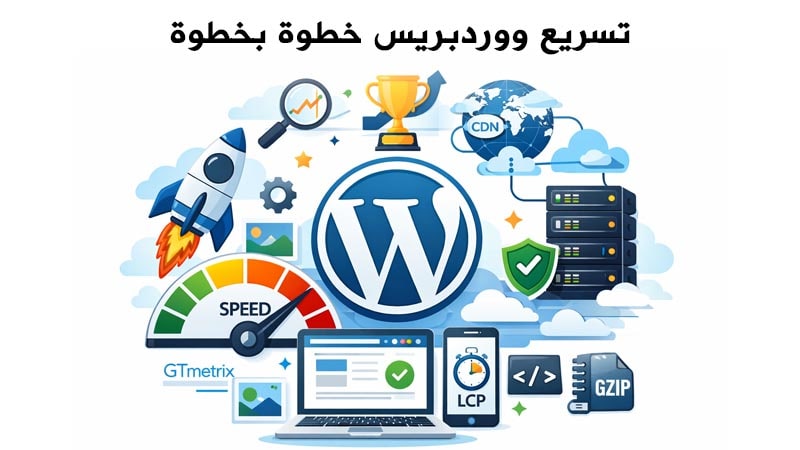
Why Should You Speed Up Your WordPress Website?
Website speed is a critical factor in user experience. When your pages load quickly, visitors feel comfortable, stay longer, and interact more with your content. Slow websites lead to higher bounce rates and lost potential customers.
Website speed also has a direct impact on Google search rankings. Search engines favor fast websites because they provide a better user experience. Improving WordPress performance increases your chances of ranking on the first page for your target keywords.
In addition, speed directly affects conversion rates and sales. Fast websites make it easier for users to complete actions such as purchases or registrations, while slow websites often lose users before the process is completed.
Measure Your Website Speed Before You Start (Step One)
Before optimizing performance, it is essential to measure your website speed to identify weak points. Use key testing tools such as Google PageSpeed Insights, GTmetrix, and WebPageTest.
Review the reports for factors affecting performance such as page size, number of requests, and server response time. Focus on Core Web Vitals metrics such as:
- LCP (Largest Contentful Paint) – loading speed of the largest visible element.
- FID (First Input Delay) – how quickly the site responds to user interaction.
- CLS (Cumulative Layout Shift) – visual stability during page load.
Choose the Right WordPress Hosting (A Core Step)
Hosting plays a major role in WordPress speed. Slow or overcrowded shared servers can negatively affect performance. Choosing a powerful WordPress-optimized hosting plan ensures faster load times and better responsiveness.
You can explore hosting comparisons in our articles: Types of Web Hosting and Their Differences and How to Choose the Best Hosting for Your Website.
Tips for selecting the right WordPress hosting plan:
- Choose managed WordPress hosting for pre-optimized settings.
- Ensure sufficient resources (RAM and CPU), especially for content-heavy sites or online stores.
- Make sure the hosting supports modern PHP versions and MySQL or MariaDB.
Use a Lightweight and Fast WordPress Theme
A lightweight theme uses clean, optimized code and avoids unnecessary files. Heavy or overly complex themes slow down page loading and reduce user experience.
Popular lightweight WordPress themes include:
- Astra
- GeneratePress
- Neve
Tips to reduce unused code:
- Enable only essential theme features
- Remove unused widgets and plugins
- Avoid loading unused CSS and JavaScript files
Optimize Images and Media Assets
Large images significantly affect website speed. Before uploading images, compress them using tools like TinyPNG or ShortPixel.
Use modern image formats such as WebP or AVIF for better quality with smaller file sizes, and enable Lazy Loading so images load only when they appear on screen.
Enable Caching Step by Step
Caching stores copies of your website pages to reduce load time for returning visitors. Popular WordPress caching plugins include:
- W3 Total Cache
- WP Rocket
- LiteSpeed Cache
Recommended settings include:
- Enable Page Cache to store HTML pages
- Enable Browser Cache to reduce server requests
- Minify CSS and JavaScript files
Use a Content Delivery Network (CDN)
A CDN distributes your website files across servers worldwide, reducing response time for visitors regardless of their geographic location.
Popular CDN providers include Cloudflare, StackPath, and KeyCDN. Choose a provider based on proximity to your audience, ease of WordPress integration, and security features.
Optimize CSS and JavaScript Files
Heavy or unoptimized CSS and JavaScript files can significantly delay page loading, especially on mobile devices. To speed up WordPress:
- Minify files: Use plugins like WP Rocket or Autoptimize to compress CSS and JS files.
- Defer non-critical scripts: Load non-essential JavaScript after the main content to improve perceived load time.
Reduce Unnecessary Plugins
Each plugin adds extra CSS, JS files, and server requests. To minimize plugin impact:
- Review all installed plugins and remove unused ones.
- Replace heavy plugins with lightweight alternatives or built-in features.
- Keep plugins updated to avoid performance issues.
Optimize the WordPress Database
Unused data such as spam comments and post revisions can slow down your database. To optimize performance:
- Use database cleanup plugins like WP-Optimize or Advanced Database Cleaner.
- Remove unnecessary tables and old backups.
- Schedule regular database cleanups.
Enable File Compression (GZIP) and Improve Connections
File compression reduces the size of data transferred from the server to the browser, speeding up load times. To enable GZIP:
- Add the following code to your .htaccess file:
AddOutputFilterByType DEFLATE text/html text/css text/javascript application/javascript application/json
- Ensure your server supports GZIP, which is typically available on managed WordPress hosting.
Keep WordPress and Systems Updated
Updating WordPress core, themes, and plugins ensures better performance and security. Outdated versions may contain inefficient code or vulnerabilities that affect speed.
- Always update WordPress and plugins when new versions are available.
- Test your website after updates to ensure performance remains stable.
Advanced Performance Optimization Steps (For Developers)
- Load non-critical scripts asynchronously or deferred (Async/Defer).
- Optimize font loading using font-display: swap to reduce rendering delays.
- Continuously monitor performance using tools like GTmetrix and PageSpeed Insights.
Test Results After Every Change
After applying any optimization step, re-test your website speed to measure progress:
- Use the same testing tools for accurate comparison.
- Focus on Core Web Vitals metrics such as LCP, FID, and CLS.
- Ensure no new errors appear after each change.
Common WordPress Speed Optimization Mistakes and How to Avoid Them
- Applying changes without testing before and after.
- Using multiple caching plugins at the same time, causing conflicts.
- Loading unnecessary CSS and JavaScript files.
- Ignoring image or database optimization.
Conclusion – The Best WordPress Speed Optimization System for Higher Rankings
To successfully speed up your WordPress website, combine powerful hosting, a lightweight theme, image and file optimization, database management, and a CDN. Each step improves user experience and increases your chances of ranking higher in search engines.
For advanced optimization solutions and high-performance WordPress hosting, visit Madar Host WordPress Hosting Page.
Frequently Asked Questions About WordPress Speed Optimization
- How do I know if my WordPress website is actually slow?
Test your website using tools like Google PageSpeed Insights, GTmetrix, and WebPageTest. Focus on Core Web Vitals metrics such as LCP, FID, and CLS.
- Can I speed up my site without changing hosting?
Yes, you can improve speed through image optimization, plugin reduction, caching,