Common WordPress Errors and How to Fix Them
Print- 0
Common WordPress Errors and How to Fix Them
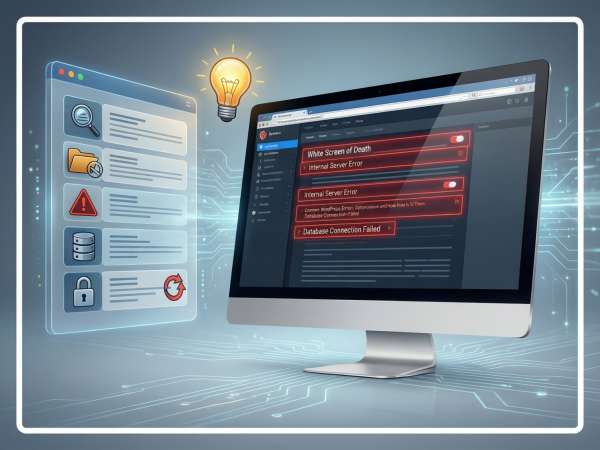
What Causes Common WordPress Errors?
WordPress errors often stem from misconfigurations, resource limitations, or compatibility issues within the hosting environment. While WordPress itself is robust, its reliance on PHP, MySQL, and third-party code makes it susceptible to failures when underlying components are unstable or improperly set up.
1. Plugin and Theme Conflicts
Poorly coded, outdated, or incompatible plugins and themes are among the top causes of white screens, fatal errors, and login loops. Many developers release extensions without thorough testing across WordPress versions or PHP environments, leading to syntax errors or function clashes.
2. PHP Memory Exhaustion
When a site exceeds its allocated PHP memory—common on shared hosting during media uploads, plugin updates, or complex queries—WordPress may crash silently with a blank screen. The default memory limit (often 64MB–128MB) is insufficient for modern sites using page builders or e-commerce functionality.
3. Corrupted Core Files or Database
Incomplete updates, interrupted file transfers, or server crashes can corrupt WordPress core files or database tables. This frequently results in “Error establishing a database connection” or missing admin functionality.
4. Incorrect File Permissions or Ownership
Overly restrictive or permissive file permissions prevent WordPress from reading critical files or writing logs/uploads. A misconfigured .htaccess file or incorrect ownership (e.g., after manual FTP edits) commonly triggers 403 Forbidden or 500 Internal Server errors.
5. Hosting Environment Limitations
Low-end shared hosting often imposes strict CPU, RAM, or I/O limits. Under traffic spikes or background processes (e.g., backups, cron jobs), these constraints can throttle execution, causing timeouts or partial page loads. Additionally, outdated PHP versions or missing modules (e.g., mod_rewrite) break core functionality.
6. URL and Cookie Mismatches
After migrations or SSL enforcement, mismatched site URLs (WP_HOME/WP_SITEURL) or mixed HTTP/HTTPS content can invalidate authentication cookies, resulting in persistent redirect loops during login.
Understanding these root causes enables proactive troubleshooting and informs better hosting and development choices—key to maintaining a stable, high-performing WordPress site.
White Screen of Death ( WSOD ) – Causes and Fixes
The White Screen of Death (WSOD) in WordPress occurs when your site loads a blank white page with no visible error. This issue typically stems from PHP memory exhaustion, plugin/theme conflicts, or corrupted core files—common in environments with limited server resources or misconfigured settings.
Common Technical Triggers
WSOD often appears after installing incompatible plugins, updating themes, or exceeding the allocated PHP memory limit. Poorly coded extensions or syntax errors in functions.php can also halt execution silently, especially on shared hosting where resource thresholds are strict.
Immediate Diagnostic Steps
Enable WordPress debugging by adding define('WP_DEBUG', true); to wp-config.php. This reveals hidden PHP errors. If the site remains inaccessible, access your files via SFTP or file manager and temporarily rename the /plugins folder to deactivate all plugins at once.
Server-Level Considerations
Insufficient RAM or CPU allocation—frequent in basic shared hosting plans—can trigger WSOD under traffic spikes. Upgrading to a VPS or managed WordPress environment often resolves underlying resource constraints.
Prevention Best Practices
Regularly update plugins and themes from trusted sources only. Avoid nulled or outdated code. Monitor memory usage and set a reasonable PHP memory limit (e.g., 256M). For mission-critical sites, choose hosting with proactive monitoring and staging environments to test changes safely before deployment.
How to Enable Debug Mode in WordPress
Debug mode in WordPress is a critical diagnostic tool that reveals PHP errors, warnings, and notices normally hidden from users. Enabling it helps identify the root cause of issues like the White Screen of Death, plugin conflicts, or unexpected behavior—especially when developing or troubleshooting a live site.
To activate debug mode, locate your wp-config.php file in the root directory of your WordPress installation (accessible via SFTP or your hosting file manager). Insert or modify the following lines before the comment that says /* That's all, stop editing! */:
define('WP_DEBUG', true);
define('WP_DEBUG_LOG', true);
define('WP_DEBUG_DISPLAY', false);
This configuration logs errors to a debug.log file inside the /wp-content/ folder while keeping them hidden from visitors—essential for production environments. Never enable WP_DEBUG_DISPLAY on live sites, as it may expose sensitive system details.
For deeper diagnostics, combine debugging with proper server-side logging. On managed WordPress hosting or VPS environments, ensure PHP error reporting is also enabled at the server level to capture low-level issues outside WordPress’s scope.
Once troubleshooting is complete, always disable debug mode to maintain performance and security. Persistent logging can fill disk space and slow down high-traffic sites.
Understanding how to use debug mode effectively is part of maintaining a healthy WordPress site. For guidance on choosing an environment that supports advanced diagnostics, see our comparison of WordPress-optimized hosting versus shared hosting.
Disabling Plugins and Themes via FTP
When WordPress fails to load—often due to a faulty plugin or incompatible theme—the fastest recovery method is disabling these components directly via FTP (File Transfer Protocol). This approach bypasses the admin dashboard and grants direct access to your site’s file structure, making it essential for troubleshooting critical errors like the White Screen of Death.
How to Disable All Plugins via FTP
Connect to your hosting account using an FTP client (e.g., FileZilla) or your host’s file manager. Navigate to the /wp-content/ directory and locate the plugins folder. Rename it to something like plugins_off. WordPress will automatically deactivate all plugins upon detecting the missing folder. If the site loads afterward, the issue lies within one of the plugins. To identify the culprit, rename the folder back to plugins, then reactivate plugins one by one.
How to Switch to a Default Theme via FTP
If plugins aren’t the cause, the active theme may be triggering the error. Inside /wp-content/themes/, you’ll see folders for each installed theme. Locate your current theme (e.g., your-theme) and temporarily rename it (e.g., your-theme_off). WordPress will fall back to a default theme like Twenty Twenty-Four, restoring frontend access. Once confirmed, investigate the original theme for syntax errors, outdated functions, or compatibility issues with your WordPress version.
This method is especially effective on VPS or cloud hosting environments, where full file system access is available. Always ensure backups exist before modifying core directories, and avoid editing live files without testing in a staging environment first.
Internal Server Error – Step-by-Step Solutions
The HTTP 500 Internal Server Error is a generic server-side failure that indicates something went wrong, but the server couldn’t specify what. Unlike client-side errors (e.g., 404), this issue stems from misconfigurations, resource limits, or corrupted files on the hosting environment.
1. Check .htaccess File Integrity
A malformed .htaccess file is a frequent cause of 500 errors, especially after WordPress permalink changes or plugin installations. Rename the file to .htaccess_backup via FTP or file manager. If the site loads, regenerate it by visiting Settings > Permalinks in WordPress. Always back up before editing.
2. Increase PHP Memory Limit
Exceeding the allocated memory triggers silent failures. Add this line to wp-config.php:define('WP_MEMORY_LIMIT', '256M');
If the error persists, verify the limit is honored by your hosting plan—shared environments often cap memory strictly, as noted in our guide on common causes of website slowness.
3. Review File and Folder Permissions
Incorrect permissions can block script execution. Set directories to 755 and files to 644. Avoid 777—it’s a security risk. Use your hosting file manager or SSH to apply these recursively.
4. Examine Error Logs
Access logs via cPanel or your host’s dashboard. Look for PHP fatal errors, syntax issues, or module conflicts. If logs are unavailable, enable WP_DEBUG temporarily to surface hidden errors—though never on production without restricting display.
5. Test with a Default Theme and Plugins Disabled
Corrupted themes or plugins can cause 500 errors. Via FTP, rename /plugins to disable all plugins, and switch to a default theme by renaming your current theme folder. If the site recovers, reactivate components one by one to isolate the culprit.
Checking .htaccess File Corruption
The .htaccess file is a critical configuration file in Apache-based hosting environments, commonly used by WordPress to manage permalinks, security rules, redirects, and caching directives. Even a minor syntax error or unexpected character can trigger an HTTP 500 Internal Server Error or cause parts of your site to become inaccessible.
How to Identify .htaccess Corruption
Common signs include:
- Blank white screen or 500 error after saving permalink settings
- Specific pages returning 403/404 errors despite existing content
- Admin dashboard accessible but frontend broken
Since the file is hidden by default, ensure your FTP client or file manager is configured to show hidden files.
Step-by-Step Verification Process
1. Backup the current file: Before making any changes, download a copy of the existing .htaccess for reference.
2. Rename the file: Temporarily rename it to .htaccess_corrupted or similar. This forces Apache to ignore it.
3. Test site access: If the site loads normally after renaming, the issue lies within the file.
4. Restore default rules: In WordPress, go to Settings > Permalinks and click “Save Changes.” This regenerates a clean, standard .htaccess with only essential rewrite rules.
Preventing Future Corruption
Avoid manually editing .htaccess unless necessary. Many caching, security, or SEO plugins automatically modify this file—sometimes incorrectly during updates or conflicts. Always verify plugin compatibility and test changes on a staging environment first. Additionally, ensure your hosting environment uses proper file permissions (644) to prevent unintended writes or truncation.
On managed hosting platforms optimized for WordPress, automatic safeguards often limit direct write access to .htaccess, reducing corruption risk. However, understanding how to diagnose and resolve this issue remains essential for maintaining site stability and uptime.
Increasing PHP Memory Limit
WordPress and its plugins require a certain amount of memory to function properly. When the allocated PHP memory limit is exceeded—often due to resource-heavy themes, large media operations, or poorly optimized code—the site may crash with a white screen or return an HTTP 500 error. Adjusting the memory limit is a standard troubleshooting step for resolving such issues.
Understanding the Default Limits
Many shared hosting environments default to 64MB or 128MB of PHP memory, which may suffice for basic sites but is often inadequate for e-commerce stores, multilingual setups, or sites using page builders. WordPress itself recommends at least 128MB, while complex installations may require 256MB or more.
Methods to Increase the Memory Limit
1. Via wp-config.php (Recommended for WordPress):
Add the following line to your wp-config.php file, just before the /* That's all, stop editing! */ comment:define('WP_MEMORY_LIMIT', '256M');
This sets the limit specifically for WordPress. Note that this cannot exceed the server’s master PHP memory cap.
2. Via php.ini (If you have access):
In your site’s root or public_html directory, create or edit a php.ini file and add:memory_limit = 256M
3. Via .htaccess (Apache only):
Add this directive to your .htaccess file:php_value memory_limit 256M
Caution: Incorrect syntax here can cause a 500 error.
Important Considerations
Increasing memory is a workaround, not a permanent fix. Consistently hitting memory limits often indicates deeper issues—such as inefficient plugins, unoptimized queries, or excessive background processes. Audit your active extensions and consider disabling or replacing those that consume disproportionate resources.
Additionally, some hosting providers enforce hard caps on memory usage, especially on entry-level plans. If your changes don’t take effect, contact your host to confirm the allowed maximum or consider upgrading to a plan with greater resource allocation.
Database Connection Error – Diagnosis and Repair
A “Error establishing a database connection” message in WordPress indicates that the site cannot communicate with its MySQL database. This critical failure can stem from incorrect credentials, a corrupted database, server resource exhaustion, or database service downtime. Accurate diagnosis is essential to restore functionality quickly and securely.
1. Verify Database Credentials in wp-config.php
The most common cause is mismatched login details. Open wp-config.php and confirm these values match your hosting account’s database settings:
DB_NAME– Correct database nameDB_USER– Valid database usernameDB_PASSWORD– Accurate password (case-sensitive)DB_HOST– Usuallylocalhost, but may differ on managed or cloud setups
If you recently migrated your site or reset passwords, update these fields accordingly.
2. Check Database Server Status
If credentials are correct, the MySQL service itself may be down. This often occurs during high server load, maintenance, or resource limits on shared environments. Access your hosting control panel (e.g., cPanel) and look for MySQL status indicators. If the service is offline, contact your provider—do not attempt to restart it manually unless you manage your own server.
3. Repair a Corrupted Database
Enable WordPress’s built-in repair tool by adding this line to wp-config.php:define('WP_ALLOW_REPAIR', true);
Then visit: https://example.com/wp-admin/maint/repair.php
Choose “Repair Database” (no login required). After completion, remove or comment out the line for security.
4. Investigate Resource Limits
Excessive concurrent connections or oversized tables can exhaust available database resources, especially on budget hosting. Monitor query performance and optimize large tables using phpMyAdmin. For sites with heavy traffic or complex plugins, consider upgrading to a plan with dedicated database resources or SSD-backed storage for improved reliability.
Verifying wp-config.php Credentials
The wp-config.php file is the cornerstone of WordPress configuration, containing critical database connection details. When a “Error establishing a database connection” appears, the first and most essential step is to verify that the credentials in this file match those assigned by your hosting environment.
Key Database Constants to Check
Open wp-config.php (located in your site’s root directory) and inspect the following lines:
define('DB_NAME', 'your_database_name');define('DB_USER', 'your_database_user');define('DB_PASSWORD', 'your_password');define('DB_HOST', 'localhost');
Even a single typo, extra space, or outdated password will break the connection. Ensure values are enclosed in single quotes and contain no hidden characters.
Where to Find Correct Credentials
Log in to your hosting control panel (e.g., cPanel) and navigate to the MySQL Databases section. There you’ll see:
- The exact database name
- The associated user account
- Whether the user has proper privileges assigned
If you recently reset a database password, you must update DB_PASSWORD in wp-config.php to reflect the new value. Similarly, after migrating a site, never reuse old credentials—always create new ones in the destination environment.
Special Cases and Common Pitfalls
On some managed or cloud hosting platforms, DB_HOST may not be localhost—it could be an IP address or internal hostname (e.g., 127.0.0.1:3306 or a custom socket path). Consult your host’s documentation if standard values fail.
Avoid copying credentials from email or notes without re-typing them—clipboard errors often introduce invisible Unicode characters. Use a plain-text editor when modifying the file, and always back it up before making changes.
Correct credentials alone won’t fix a downed database server, but they are the foundational requirement for any successful connection.
Repairing the WordPress Database
Database corruption in WordPress can manifest as blank pages, login loops, missing content, or the infamous “Error establishing a database connection.” While often caused by incomplete updates, plugin conflicts, or server interruptions, most issues can be resolved using WordPress’s built-in repair functionality—provided you act methodically and securely.
Enabling the Repair Tool
WordPress includes a native database repair utility that checks and fixes common table inconsistencies. To activate it, add the following line to your wp-config.php file, just before the closing PHP tag or the comment that says “That's all, stop editing!”:
define('WP_ALLOW_REPAIR', true);Once enabled, visit: https://example.com/wp-admin/maint/repair.php (replace with your domain). No login is required—this page is publicly accessible when the constant is active.
Repair vs. Optimize
The tool offers two options:
- Repair Database: Fixes structural issues in tables (e.g., crashed MyISAM tables).
- Repair and Optimize Database: Performs repair plus defragmentation to improve query performance.
For most cases, “Repair Database” is sufficient. Optimization is beneficial for high-traffic sites but not always necessary during emergency recovery.
Post-Repair Security Steps
Because the repair page is publicly accessible, it poses a security risk if left enabled. Immediately after completing the repair, remove or comment out the WP_ALLOW_REPAIR line from wp-config.php:
// define('WP_ALLOW_REPAIR', true);Leaving it active could allow unauthorized users to trigger resource-intensive operations or disrupt your site.
When Repair Isn’t Enough
If the tool fails to resolve the issue, the corruption may be severe—such as missing core tables or InnoDB engine errors. In such cases, restore from a recent backup or use phpMyAdmin to manually check table status and run REPAIR TABLE commands. Always maintain regular automated backups to minimize data loss during critical failures.
403 Forbidden and 404 Not Found Errors
HTTP 403 (Forbidden) and 404 (Not Found) errors are among the most common front-end issues in WordPress. While both prevent users from accessing content, they stem from different root causes: 403 indicates a permissions or access control problem, whereas 404 signals that the requested resource doesn’t exist at the specified URL.
Understanding 403 Forbidden Errors
A 403 error occurs when the server denies access to a file or directory, typically due to incorrect file permissions, restrictive security rules in .htaccess, or misconfigured ownership settings. Common triggers include:
- File permissions set too restrictively (e.g.,
600on critical files) - Overly aggressive mod_security rules blocking legitimate requests
- Missing index file in a directory with directory listing disabled
To resolve, ensure directories use 755 and files use 644. Review .htaccess for deny rules, and temporarily disable security plugins to test for conflicts.
Diagnosing 404 Not Found Errors
404 errors usually appear after permalink changes, site migrations, or broken internal links. WordPress relies on URL rewriting to serve dynamic content, and if the rewrite rules aren’t properly generated, all non-homepage links may return 404s.
The fastest fix is to reset permalinks: go to Settings > Permalinks in the WordPress dashboard and click “Save Changes.” This regenerates the necessary rewrite rules in .htaccess (on Apache) or the server configuration (on Nginx).
If the issue persists, verify that the requested file or post actually exists and hasn’t been deleted or renamed. Use tools like the Broken Link Checker plugin to audit internal links systematically.
Preventive Best Practices
Maintain consistent file permissions, avoid manual edits to server-level configurations unless necessary, and always test permalink structures after major updates. For high-traffic sites, implement custom 404 pages that guide users back to relevant content—improving both user experience and SEO resilience.
Fixing File and Folder Permissions
Incorrect file and folder permissions are a frequent cause of WordPress errors, including 403 Forbidden responses, failed updates, and media upload failures. Proper permissions ensure that the web server can read necessary files while preventing unauthorized modifications—a critical balance for both functionality and security.
Recommended Permission Standards
For most WordPress installations on Linux-based hosting, adhere to these conventions:
- Directories (folders):
755— Owner can read, write, and execute; group and others can only read and enter. - Files:
644— Owner can read and write; group and others can only read.
Never use 777—it grants full read/write/execute access to everyone and creates severe security vulnerabilities.
How to Apply Correct Permissions
Use your hosting file manager or an SFTP client (e.g., FileZilla) to adjust permissions:
- Navigate to your WordPress root directory (usually
public_htmlorhtdocs). - Select all folders, right-click, and set permissions to
755. - Select all files and set permissions to
644. - For specific cases like the
wp-config.phpfile, consider stricter settings such as600if your server configuration allows it, as this file contains sensitive database credentials.
Special Considerations
Some plugins or themes may require write access to specific directories (e.g., /wp-content/uploads/). In such cases, keep those folders at 755 but ensure your web server user (e.g., www-data or nobody) owns them. On shared hosting, ownership is typically managed by the host, so avoid manual chown commands unless you’re on a VPS or dedicated server.
If you’ve recently migrated your site or restored from a backup, permissions may have been reset incorrectly. Always verify and normalize them as part of post-migration checks.
Properly configured permissions not only resolve access errors but also harden your site against common exploitation vectors, reinforcing both stability and trustworthiness.
Updating Permalinks Structure
Permalinks define the permanent URL structure for your WordPress posts, pages, and archives. When changed without proper server configuration, they can cause 404 Not Found errors across your site—even if content exists—because the web server cannot map the new URLs to actual files or rewrite rules.
How WordPress Handles Permalinks
Unlike default “plain” URLs (e.g., ?p=123), custom permalink structures (like /blog/post-name/) rely on URL rewriting. On Apache servers, this requires a properly configured .htaccess file; on Nginx, it depends on server block rules. If these are missing or outdated, requests to clean URLs fail with 404s.
Correct Way to Update Permalinks
Always make changes through the WordPress dashboard:
- Go to Settings > Permalinks.
- Select your desired structure (e.g., Post name).
- Click Save Changes—even if no settings were altered.
This action triggers WordPress to regenerate the necessary rewrite rules. On Apache, it updates the .htaccess file automatically (if writable). On Nginx, you must manually configure rewrites, as WordPress cannot modify server config files directly.
Troubleshooting Common Issues
If pages still return 404 after saving:
- Verify that
.htaccessexists and contains the standard WordPress rules. If missing, create it and ensure it’s writable (644permissions). - Confirm that Apache’s
mod_rewritemodule is enabled—commonly disabled on minimal server setups. - Clear any caching layers (plugin, server, or CDN) that might serve stale redirect rules.
Best Practices for Stability
Avoid frequent permalink changes on live sites, as they can break external links and harm SEO. If restructuring is necessary, implement 301 redirects from old URLs to preserve traffic and rankings. Always test new structures on a staging environment first, especially on complex sites with custom post types or multilingual setups.
WordPress Login Redirect Loop Issues
A WordPress login redirect loop occurs when you enter correct credentials but are continuously redirected back to the login page without accessing the dashboard. This frustrating issue typically stems from misconfigured site URLs, corrupted cookies, or server-level caching—preventing WordPress from validating your session properly.
1. Clear Browser Cookies and Cache
WordPress uses authentication cookies to maintain your logged-in state. If these become corrupted or mismatched with your current domain (e.g., after a migration from HTTP to HTTPS or www to non-www), the system rejects your session. Clear cookies for your site specifically—or use a private browsing window—to test if the issue persists.
2. Verify Site URL Settings
Incorrect WP_HOME or WP_SITEURL values are a leading cause of redirect loops. These should exactly match your live domain, including protocol (https://) and subdomain format. Check them in two places:
- Database: In the
wp_optionstable, ensuresiteurlandhomefields reflect the correct address. - wp-config.php: If defined here (e.g.,
define('WP_HOME', 'https://example.com');), they override database values—so verify syntax and consistency.
3. Disable Caching Temporarily
Server-side caching (OPcache, Redis) or security plugins may cache outdated redirect rules or block cookie headers. Temporarily disable caching layers during troubleshooting. If you’re using a reverse proxy or CDN (like Cloudflare), pause it briefly to rule out edge-caching interference.
4. Check for Plugin or Theme Conflicts
Security or SEO plugins sometimes enforce strict redirect rules that conflict with login flow. Rename the /plugins folder via FTP to deactivate all plugins. If login succeeds, reactivate one by one to identify the culprit. Similarly, switch to a default theme to eliminate template-related issues.
5. Ensure Proper HTTPS Configuration
Mixed content or incomplete SSL setup can break secure cookie handling. Confirm your SSL certificate is valid and that your server enforces HTTPS consistently across all requests. Avoid hardcoding HTTP links in configuration files when your site runs on HTTPS.
Clearing Browser Cookies and Cache
When troubleshooting WordPress login issues—especially redirect loops or persistent authentication failures—the first diagnostic step should always be clearing your browser’s cookies and cache. These stored elements can retain outdated session data, mismatched domain references, or corrupted authentication tokens that prevent WordPress from validating your credentials correctly.
Why This Matters
WordPress relies on secure cookies (like wordpress_logged_in_... and wordpress_sec_...) to maintain your admin session. If your site recently migrated from HTTP to HTTPS, changed domains (e.g., www to non-www), or switched hosting environments, existing cookies may reference the old configuration. The browser sends these stale cookies with each request, causing WordPress to reject the session and redirect you back to the login screen—even with correct credentials.
How to Clear Effectively
Don’t just clear “cache”—target cookies specifically for your domain:
- Chrome/Firefox/Edge: Open Developer Tools (F12) > Application (or Storage) tab > Clear storage for your site under “Cookies” and “Cache Storage.”
- Safari: Preferences > Privacy > Manage Website Data > Search your domain > Remove.
- Alternative method: Use a private/incognito window to test login—this bypasses all stored data entirely.
Avoid Common Oversights
Clearing “all browsing data” isn’t always necessary and may disrupt other sites. Focus only on your WordPress domain. Also, ensure you’re not logged in via multiple tabs or devices simultaneously, as conflicting sessions can cause erratic behavior.
When It’s Not Enough
If login works in an incognito window but fails in your regular browser, the issue is confirmed to be client-side (cookies/cache). However, if the problem persists even in private mode, the root cause likely lies server-side—such as incorrect site URLs, plugin conflicts, or misconfigured HTTPS settings. In such cases, proceed to verify WordPress constants and server environment variables.
Regularly clearing cookies during development or after major site changes is a simple yet powerful practice to ensure accurate testing and reliable user authentication.
Resetting Site URL Settings
Incorrect site URL settings are a frequent cause of WordPress login loops, broken assets, and mixed content warnings. These settings—siteurl and home—define where WordPress files reside and where the site is accessed from. When they diverge from your actual domain (e.g., after migration or SSL setup), core functionality breaks silently.
Where WordPress Stores URL Settings
By default, these values are stored in the wp_options table of your database. However, they can also be overridden in wp-config.php using constants. If both exist, the file-based definitions take precedence, which can lead to confusion during troubleshooting.
Method 1: Update via Database (phpMyAdmin)
1. Access your database through phpMyAdmin or your host’s database tool.
2. Locate the wp_options table (prefix may vary).
3. Find the rows with option_name = siteurl and home.
4. Ensure both option_value fields match your live domain exactly—including protocol (https://) and subdomain format (e.g., www or not).
Method 2: Define in wp-config.php
Add these lines to wp-config.php, above the “That’s all, stop editing!” comment:
define('WP_HOME', 'https://yourdomain.com');
define('WP_SITEURL', 'https://yourdomain.com');
This method is useful when you can’t access the admin dashboard or when database edits aren’t feasible. Remember to remove these lines later if you plan to change URLs through the WordPress interface again.
Critical Considerations
Always ensure consistency between your actual domain, DNS records, SSL certificate, and these settings. A mismatch—even a missing “s” in http vs. https—can break cookies, scripts, and login sessions. After updating, clear any server-side caching and test in an incognito browser window to confirm resolution.
For multisite installations, URL changes require additional steps and should be handled with caution to avoid network-wide disruptions.
How to Prevent WordPress Errors in the Future
Regular Backups and Updates
Proactive maintenance is the most effective strategy to avoid recurring WordPress errors. Two foundational practices—consistent backups and timely updates—form the backbone of a resilient, secure, and stable website environment.
The Role of Automated Backups
A reliable backup system ensures you can restore your site quickly after crashes, hacks, or failed updates. Backups should include both files (themes, plugins, uploads) and the database. Manual exports are error-prone; instead, use automated solutions that store copies offsite or in isolated storage. Retain multiple versions (daily, weekly) to recover from issues that may go unnoticed for days.
Why Updates Matter Beyond Security
While security patches are critical, updates also fix compatibility bugs, improve performance, and resolve conflicts between core, themes, and plugins. Outdated components are a leading cause of white screens, login loops, and database errors—especially when newer PHP versions deprecate older functions. Always update in this order: WordPress core → plugins → theme.
Best Practices for Safe Updating
- Test in staging: Apply updates on a clone of your live site first.
- Check compatibility: Review plugin changelogs and user feedback before upgrading.
- Avoid nulled or abandoned plugins: These often contain outdated code that breaks with modern WordPress versions.
- Monitor PHP version: Ensure your hosting environment supports the PHP version required by your stack.
Integrating Maintenance into Workflow
Schedule updates during low-traffic periods and pair them with immediate backup verification. Enable WordPress’s built-in auto-updates for minor releases, but manage major version changes manually. Combine this discipline with server-level monitoring (e.g., uptime checks, disk usage alerts) to catch issues before they escalate.
Prevention isn’t about eliminating all risk—it’s about reducing recovery time and maintaining trust with your users through consistent reliability.
Frequently Asked Questions (FAQ)
Why does my WordPress site show a blank white screen?
The White Screen of Death (WSOD) usually occurs due to PHP memory exhaustion, plugin/theme conflicts, or syntax errors. To fix it, enable WordPress debug mode to identify the issue, or access your site via FTP to deactivate plugins or switch to a default theme temporarily.
How do I fix an Internal Server Error in WordPress?
An Internal Server Error often stems from a corrupted .htaccess file or insufficient PHP memory. Try renaming your .htaccess file to force WordPress to regenerate it, or increase the memory limit by adding `define('WP_MEMORY_LIMIT', '256M');` to your wp-config.php file.
What should I do if WordPress can’t connect to the database?
This error typically means incorrect database credentials in wp-config.php or a corrupted database. Double-check your DB_NAME, DB_USER, DB_PASSWORD, and DB_HOST values. If they’re correct, add `define('WP_ALLOW_REPAIR', true);` to wp-config.php and visit /wp-admin/maint/repair.php to repair tables.
Why am I stuck in a WordPress login redirect loop?
A login redirect loop is commonly caused by mismatched site URLs or corrupted cookies. Clear your browser cookies for the site, or verify that the WordPress Address (URL) and Site Address (URL) in Settings > General match your actual domain—especially after migration.
How can I resolve 404 Not Found errors on all pages except the homepage?
This usually happens when permalink settings are outdated or misconfigured. Go to Settings > Permalinks in your WordPress dashboard and simply click “Save Changes” to refresh the rewrite rules. If you can’t access the dashboard, reset permalinks via FTP by temporarily switching to the default structure.
What causes a 403 Forbidden error in WordPress and how do I fix it?
A 403 error often results from incorrect file or folder permissions. Set directories to 755 and files to 644 using an FTP client or file manager. Also, check your server’s security rules (like ModSecurity) which may block legitimate requests.
Can a faulty plugin crash my entire WordPress site?
Yes, a poorly coded or incompatible plugin can cause WSOD, fatal errors, or admin access issues. If you can’t log in, rename the plugins folder via FTP to deactivate all plugins instantly. Then reactivate them one by one to identify the culprit.
How do I increase the PHP memory limit for WordPress?
You can raise the memory limit by editing wp-config.php and adding `define('WP_MEMORY_LIMIT', '256M');`. Alternatively, modify your php.ini file or contact your hosting provider—some hosts restrict memory adjustments via user files.
Is it safe to repair the WordPress database automatically?
Yes, WordPress’s built-in repair tool is safe for basic table optimization and recovery. Enable it by adding `define('WP_ALLOW_REPAIR', true);` to wp-config.php, then visit /wp-admin/maint/repair.php. Remember to remove this line afterward for security.
Why do WordPress errors keep coming back after I fix them?
Recurring errors often point to outdated software, unpatched themes/plugins, or unstable hosting. Maintain regular updates, use trusted plugins only, and choose a managed WordPress host with strong uptime and support to minimize repeat issues.